
Spotlight got a huge upgrade in macOS Tahoe, here's how to use it
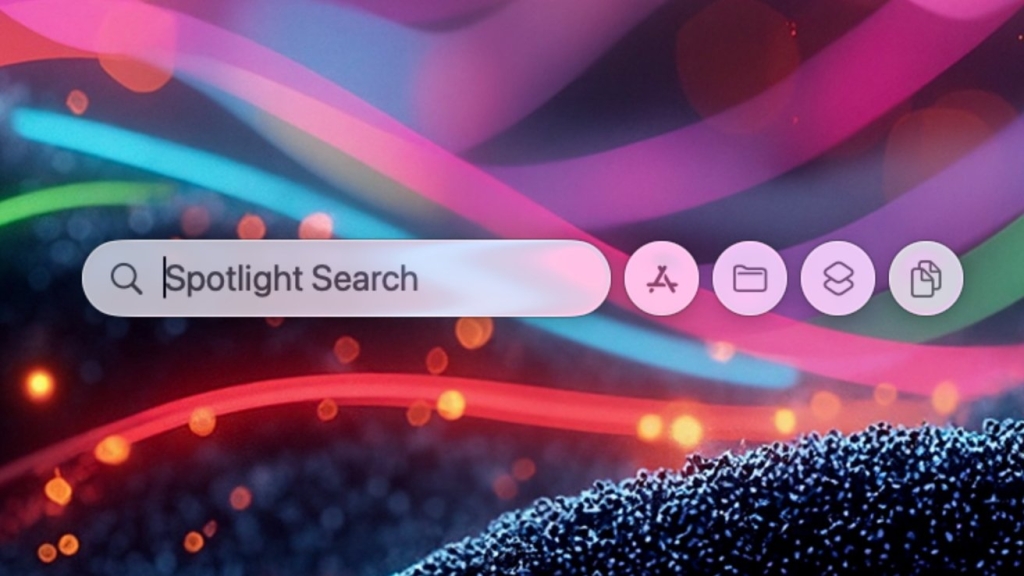
Apple’s Spotlight Just Got a Massive Upgrade in macOS Tahoe — Here’s Why It’s Now a Game-Changer
Apple’s Spotlight feature has been a staple of the Mac experience for years, offering users a quick way to launch apps, find files, and perform basic searches. However, for power users and productivity enthusiasts, Spotlight often took a backseat to third-party alternatives like Alfred and Raycast, which offered more advanced features and customization options. But with the release of macOS Tahoe, Apple has completely reimagined Spotlight, transforming it into a powerhouse tool that rivals—and in some cases, surpasses—its competitors. Here’s everything you need to know about the new and improved Spotlight, and how to make the most of its powerful new features.
A Long-Awaited Overhaul
Spotlight has been a part of macOS since its debut in 2005, but its functionality has remained relatively unchanged for years. While it was always reliable for basic tasks like opening apps or searching for files, it lacked the advanced capabilities that power users craved. Enter macOS Tahoe, which brings the biggest update to Spotlight in over a decade. Apple has taken user feedback to heart, delivering a feature-rich experience that caters to both casual users and productivity pros.
What’s New in Spotlight?
The revamped Spotlight in macOS Tahoe is packed with new features that make it more versatile and powerful than ever. Here are some of the standout additions:
1. Enhanced Search Capabilities
Spotlight now offers more intelligent and contextual search results. Whether you’re looking for a specific file, email, or even a piece of information within a document, Spotlight can now surface the most relevant results faster than ever. It also integrates seamlessly with other macOS apps, making it easier to find what you need without switching between multiple tools.
2. Quick Actions
One of the most exciting new features is the ability to perform quick actions directly from Spotlight. For example, you can now convert currencies, calculate math problems, or even create reminders without leaving the search bar. This makes Spotlight a true productivity hub, eliminating the need to open separate apps for these tasks.
3. App Integration
Spotlight now integrates more deeply with third-party apps, allowing you to search for content within apps like Slack, Notion, and more. This means you can find messages, documents, or other information from your favorite apps without having to open them individually.
4. Customizable Interface
Apple has given users more control over how Spotlight looks and behaves. You can now customize the size, position, and appearance of the search bar, making it easier to tailor the experience to your preferences.
5. Natural Language Processing
Spotlight now supports natural language queries, making it easier to search for things in a more conversational way. For example, you can type “Find my presentation from last week” and Spotlight will understand exactly what you’re looking for.
6. Live Text Integration
With macOS Tahoe, Spotlight now supports Live Text, allowing you to search for text within images. This is a game-changer for users who frequently work with scanned documents or photos containing text.
How to Make the Most of Spotlight’s New Features
Ready to take your Spotlight experience to the next level? Here are some tips and tricks to help you get the most out of the new features:
1. Master the Keyboard Shortcuts
While you can access Spotlight by clicking the magnifying glass icon in the menu bar, the fastest way to open it is by using the keyboard shortcut Command + Space. Once you’ve got that down, you’ll be able to access Spotlight’s powerful features in seconds.
2. Use Quick Actions for Everyday Tasks
Take advantage of Spotlight’s new quick actions to streamline your workflow. For example, you can type “10 USD to EUR” to instantly convert currencies, or “What’s 15% of 200?” to perform quick calculations. These small time-savers can add up throughout the day.
3. Leverage Natural Language Queries
Don’t be afraid to type in full sentences or phrases when searching. Spotlight’s natural language processing is designed to understand context, so feel free to be as specific as you like. For example, try searching for “Find my notes from the team meeting last Thursday” to see how it works.
4. Explore App Integrations
If you use third-party apps like Slack or Notion, make sure to enable their integration with Spotlight. This will allow you to search for content within these apps directly from the search bar, saving you time and effort.
5. Customize Your Experience
Head to System Settings > Spotlight to customize how the feature works on your Mac. You can choose which categories to include in search results, adjust the order of results, and even disable certain features if they don’t suit your needs.
6. Experiment with Live Text
If you frequently work with images containing text, try using Spotlight’s Live Text integration. Simply drag and drop an image into the search bar, and Spotlight will automatically recognize and search for any text within the image.
Why This Update Matters
The overhaul of Spotlight in macOS Tahoe is a significant move by Apple to keep users within its ecosystem. By offering many of the same features as popular third-party apps like Alfred and Raycast, Apple is making it easier for users to stick with built-in tools rather than seeking out alternatives. This not only enhances the overall macOS experience but also reinforces Apple’s commitment to delivering powerful, user-friendly software.
Moreover, the fact that Spotlight is now free and comes pre-installed on every Mac makes it an incredibly accessible tool for users of all skill levels. Whether you’re a casual user looking to streamline your workflow or a power user seeking advanced functionality, Spotlight has something to offer.
The Verdict
With macOS Tahoe, Apple has breathed new life into Spotlight, transforming it from a basic search tool into a versatile productivity powerhouse. The new features, including enhanced search capabilities, quick actions, app integrations, and natural language processing, make it a must-try for any Mac user. And with its seamless integration into macOS, there’s no reason not to give it a shot.
So, if you haven’t already, update to macOS Tahoe and start exploring the new Spotlight. You might just find that it becomes your go-to tool for getting things done on your Mac.
Tags & Viral Phrases:
macOS Tahoe, Spotlight upgrade, Apple Spotlight, macOS features, power user tools, productivity hacks, Spotlight tips, macOS update, Apple ecosystem, Spotlight search, Spotlight tricks, macOS Spotlight, Spotlight features, Apple news, tech updates, Spotlight review, macOS tips, Apple Spotlight guide, Spotlight tutorial, Spotlight power user, Spotlight integration, macOS Spotlight search, Spotlight natural language, Spotlight quick actions, Spotlight Live Text, Spotlight app integration, Spotlight customization, macOS Spotlight tips, Apple Spotlight features, Spotlight productivity, Spotlight search bar, Spotlight keyboard shortcuts, Spotlight math calculations, Spotlight currency conversion, Spotlight reminders, Spotlight file search, Spotlight email search, Spotlight document search, Spotlight app search, Spotlight third-party apps, Spotlight system settings, Spotlight search results, Spotlight categories, Spotlight order, Spotlight disable features, Spotlight drag and drop, Spotlight text recognition, Spotlight scanned documents, Spotlight photos text, Spotlight conversational search, Spotlight context understanding, Spotlight team meeting notes, Spotlight workflow streamlining, Spotlight time savers, Spotlight built-in tools, Spotlight user-friendly software, Spotlight accessibility, Spotlight casual users, Spotlight advanced functionality, Spotlight go-to tool, Spotlight Mac experience, Spotlight pre-installed, Spotlight free tool, Spotlight versatile tool, Spotlight productivity powerhouse, Spotlight enhanced search, Spotlight intelligent search, Spotlight contextual search, Spotlight macOS apps, Spotlight seamless integration, Spotlight third-party alternatives, Spotlight Alfred, Spotlight Raycast, Spotlight competitors, Spotlight user feedback, Spotlight decade update, Spotlight staple, Spotlight reliable, Spotlight advanced capabilities, Spotlight productivity pros, Spotlight casual users, Spotlight powerful features, Spotlight standout additions, Spotlight intelligent search results, Spotlight quick actions, Spotlight currency conversion, Spotlight math problems, Spotlight reminders, Spotlight productivity hub, Spotlight separate apps, Spotlight third-party apps, Spotlight Slack, Spotlight Notion, Spotlight messages, Spotlight documents, Spotlight information, Spotlight customizable interface, Spotlight size, Spotlight position, Spotlight appearance, Spotlight natural language queries, Spotlight conversational way, Spotlight presentation, Spotlight Live Text, Spotlight text within images, Spotlight scanned documents, Spotlight photos, Spotlight text, Spotlight keyboard shortcuts, Spotlight Command Space, Spotlight seconds, Spotlight workflow, Spotlight small time-savers, Spotlight full sentences, Spotlight phrases, Spotlight context, Spotlight specific, Spotlight app integrations, Spotlight enable integration, Spotlight content, Spotlight individual, Spotlight System Settings, Spotlight categories, Spotlight order of results, Spotlight disable features, Spotlight experiment, Spotlight drag and drop, Spotlight image, Spotlight recognize, Spotlight search text, Spotlight significant move, Spotlight ecosystem, Spotlight popular third-party apps, Spotlight Alfred Raycast, Spotlight built-in tools, Spotlight alternatives, Spotlight overall macOS experience, Spotlight user-friendly software, Spotlight free, Spotlight pre-installed, Spotlight Mac, Spotlight accessibility tool, Spotlight skill levels, Spotlight casual user, Spotlight power user, Spotlight advanced functionality, Spotlight must-try, Spotlight seamless integration, Spotlight macOS, Spotlight shot, Spotlight update, Spotlight exploring, Spotlight go-to tool, Spotlight getting things done, Spotlight Mac experience.
,


Leave a Reply
Want to join the discussion?Feel free to contribute!