
Starlink Mini as a failover
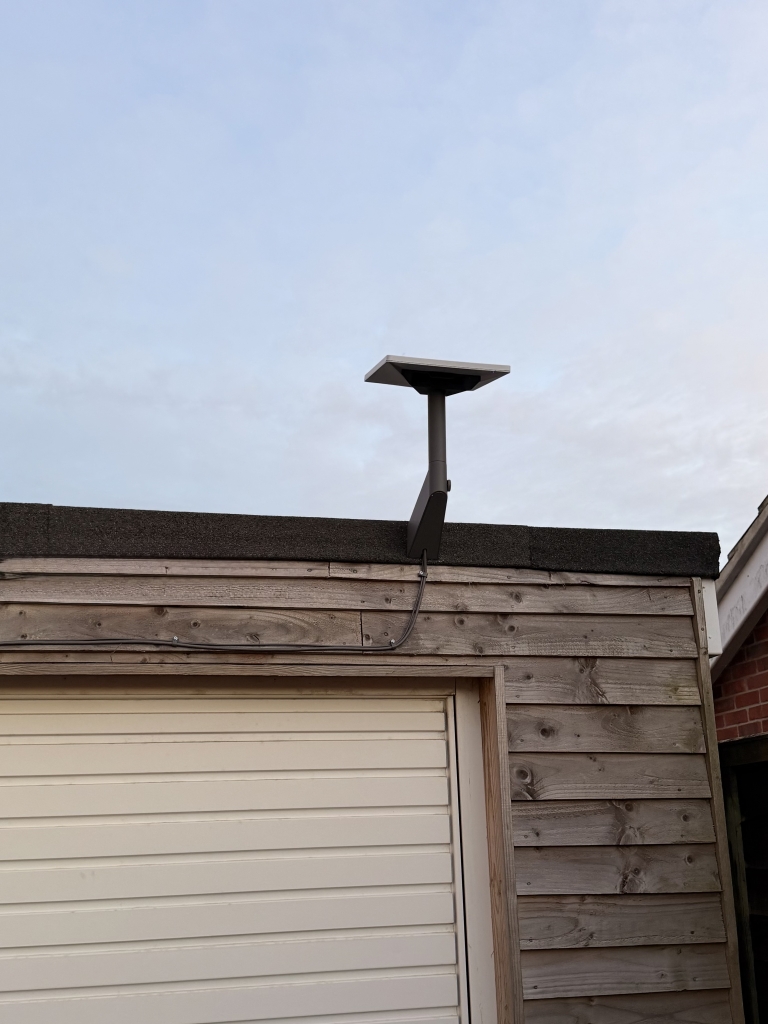
Starlink Mini: The Ultimate Backup Internet Solution That Keeps Your Network Online When Everything Else Fails
In an era where internet connectivity has become as essential as electricity, having a reliable backup connection isn’t just a luxury—it’s a necessity. I recently acquired a Starlink Mini to serve as a secondary internet connection for my home network, and the results have been nothing short of impressive, especially with Starlink’s new £4.50 standby plan that makes this backup solution incredibly cost-effective.
Why I Needed a Backup: The Reliability Factor
My primary FTTP (Fiber to the Premises) connection has been rock-solid, delivering sub-5ms latency at its best. But here’s the thing about reliability: even the best connections can fail. Whether it’s infrastructure maintenance, unexpected outages, or the occasional service disruption, having a backup that relies on a constellation of satellites orbiting 600 kilometers above Earth isn’t just practical—it’s fascinating from a technological standpoint.
The idea that I can maintain internet connectivity through a network of satellites when terrestrial infrastructure fails represents a significant leap in redundancy and reliability. It’s the kind of technological redundancy that makes you appreciate how far we’ve come in just a few years.
Starlink Mini: Compact Powerhouse
The Starlink Mini is SpaceX’s answer to portable, reliable satellite internet. This compact dish packs serious capability into a small form factor, making it perfect for backup scenarios. What really caught my attention was the ability to put it into “Standby Mode” for just £4.50 per month—a game-changing feature that makes satellite backup internet financially viable for everyday users.
The £4.50 Standby Plan: Revolutionary Pricing
In August 2025, Starlink made a significant change by replacing their free “Pause Mode” with the paid “Standby Mode.” At first glance, £4.50 might seem like an odd price point, but when you break down what you get, it’s actually quite reasonable:
- Instant activation: You can restart full-bandwidth service whenever you need it
- Unlimited low-speed data: 500kbps in standby mode—enough bandwidth for essential applications
- Emergency readiness: Perfect for critical applications like Google Meet, FaceTime, Claude AI, and even low-quality Netflix streaming
- Cost-effective: Significantly cheaper than most mobile data plans that could serve as backup connections
The 500kbps speed might not sound impressive, but it’s actually sufficient for many everyday tasks. Video conferencing apps like Google Meet and FaceTime can function at this speed, as can AI assistants like Claude. Even streaming services can operate in low-quality mode, ensuring you stay connected when your primary connection fails.
Hardware Investment: Worth Every Penny
The Starlink Mini itself costs £159—a reasonable investment for a satellite internet backup solution. When compared to 4G/5G backup solutions with similar capabilities, it’s actually quite competitive. Plus, it has a significant advantage: it works virtually anywhere with a clear view of the sky, eliminating the need to rely on mobile network coverage, which can be spotty in many areas.
Real-World Performance: Surprisingly Good
After several weeks of testing, here are my key observations:
- Latency is impressive: 18ms to 1.1.1.1, spiking to 65ms, with a mean of 26ms
- Power efficiency: Average power draw is around 13 watts thanks to recent software updates
- UniFi integration: The latest UniFi software now shows obstructions and dish latency in the dashboard
- Service expansion: Starlink recently launched 100Mbps, 200Mbps, and “Max” plans with speeds exceeding 400Mbps
- Free hardware promotion: Starlink is offering a free Mini with subscription to the Residential Max plan
- Setup simplicity: Plug it in, point it skyward, wait 5-10 minutes—that’s it
- App quality: The Starlink app is surprisingly well-designed for monitoring and configuration
The Sky Visibility Requirement
The dish does need a relatively clear view of the sky, but it’s more forgiving than you might expect. It can even work behind a thin layer of glass. The adaptive antenna technology allows it to function even with a partially obscured view, automatically adjusting to maintain the best possible connection.
IPv6 Configuration with UniFi: The Not-So-Pretty Truth
Here’s where things get interesting—and slightly complicated. Starlink supports IPv6 natively, which is great for modern networking, but getting it working properly with UniFi gear requires some manual intervention due to a bug in the UniFi firmware.
The CGNAT Challenge
Starlink uses Carrier-Grade NAT (CGNAT) on IPv4, which makes port forwarding impossible. If you’re hosting services or need direct access, this can be problematic. The solution? Either use a Cloudflare Tunnel or leverage IPv6, which provides proper routable address space.
The Setup Process
Starlink allocates a /56 IPv6 prefix via DHCPv6 Prefix Delegation. Here’s how to configure it with UniFi:
- Navigate to WAN settings (Settings → Internet → Primary WAN)
- Set ‘Advanced’ to ‘Manual’
- Enable IPv6
- Set IPv6 Connection to SLAAC (this is critical)
- Uncheck ‘Auto’ on Prefix Delegation
- Set ‘Prefix Delegation Size’ to 56
The UniFi IPv6 Routing Bug
Even after proper configuration, you might find that IPv6 clients can’t route properly. This is due to a UniFi bug where the default IPv6 route isn’t automatically assigned. Here’s how to fix it:
Step 1: SSH into your UniFi device (username: root)
Step 2: Check if the default route is missing:
bash
ip -6 route show default
Step 3: Capture the Router Advertisement:
bash
tcpdump -i eth7 -vvv icmp6
Step 4: Add the default route manually:
bash
ip -6 route add default via fe80::200:6edd:3e00:101 dev eth7
Step 5: Test from LAN clients
The Persistent Problem
This fix isn’t permanent—it disappears after UniFi firmware updates. You can either re-run the command manually or create a boot script for automatic application. Here’s a script you could use:
bash
!/bin/sh
if ! ip -6 route show default | grep -q default; then
ip -6 route add default via fe80::200:6edd:3e00:101 dev eth7
fi
Important Considerations
- Starlink’s IPv6 addresses are dynamic and can change
- The default route fix needs re-application after firmware updates
- Test from multiple devices to ensure proper functionality
- Credit to the r/Starlink community for documenting this workaround
Automatic Failover: The Real Benefit
The true power of having Starlink as a secondary WAN connection lies in UniFi’s failover capabilities. Configure Starlink as WAN2, set up load balancing with failover priority, and you’ve got automatic redundancy. If my primary connection drops, traffic seamlessly routes through Starlink without any manual intervention.
Off-Grid Capability: The Unexpected Advantage
There’s another benefit I hadn’t initially considered: power outages. With solar battery storage keeping my house running during power cuts, I realized that Starlink’s independence from local infrastructure is a game-changer. My FTTP connection relies on local cabinets and equipment that stop working when the power goes out, but Starlink continues operating because it’s powered independently and doesn’t depend on terrestrial infrastructure.
Final Thoughts
The combination of affordable standby pricing, reliable performance, and automatic failover capabilities makes Starlink Mini an excellent backup internet solution. The IPv6 configuration quirks with UniFi are a minor inconvenience compared to the peace of mind that comes with having a truly independent backup connection.
If you’ve implemented Starlink failover with UniFi or encountered similar IPv6 challenges, I’d love to hear about your experience. Drop a comment below and share your setup!
Starlink #StarlinkMini #BackupInternet #SatelliteInternet #UniFi #IPv6 #Failover #TechSetup #InternetReliability #SpaceX #SmartHome #NetworkSecurity #OffGridLiving #TechTips #InternetBackup #CGNAT #HomeNetworking #TechDIY #NetworkRedundancy #FutureProofing #TechLifeHacks
“Game-changing backup solution” “Affordable satellite internet” “Peace of mind connectivity” “Future-proof your network” “Smart home redundancy” “Tech independence” “Reliable backup internet” “Satellite failover magic” “Network redundancy made simple” “Power outage proof” “Tech setup success” “Smart networking” “Internet insurance” “DIY tech solution” “Connectivity peace of mind” “Tech redundancy win” “Smart backup strategy” “Network reliability” “Tech life hack” “Future-ready internet”
,


Leave a Reply
Want to join the discussion?Feel free to contribute!