
The 5 Most Common Amazon Fire TV Stick Problems And How To Fix Them
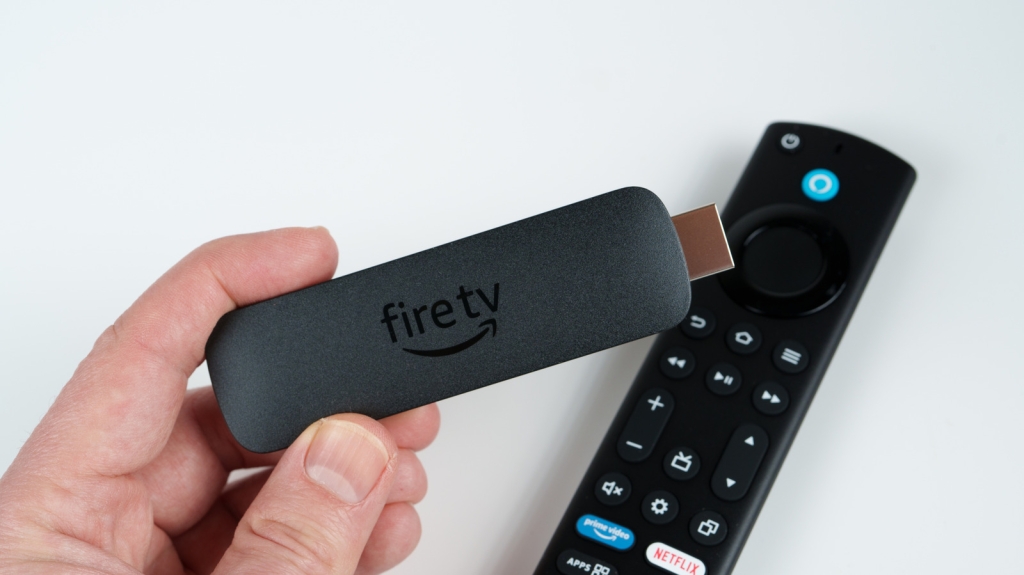
The 5 Most Common Amazon Fire TV Stick Problems and How to Fix Them
The Amazon Fire TV Stick is a revolutionary device that transforms any ordinary television into a smart entertainment hub, giving users access to streaming giants like Netflix, YouTube, and countless other apps without the hefty price tag of a new smart TV. For millions of cord-cutters and streaming enthusiasts, this compact USB-powered device has become an essential part of their home entertainment setup. However, even the most reliable technology can encounter frustrating issues that disrupt your viewing experience. After extensive research through online forums, user reports, and hands-on testing, we’ve identified the five most common problems that Fire TV Stick users face and, more importantly, how to solve them quickly and effectively.
1. Storage Problems: The Dreaded “Low on Storage” Error
Nothing kills the mood faster than settling in for a movie night only to be greeted by a “Low on Storage” error message. This issue plagues many Fire TV Stick users, particularly those with older models or the base versions that come with a mere 8GB of storage—half of what the Fire TV Stick 4K Max offers with its 16GB capacity.
The good news is that expanding your Fire TV Stick’s storage is surprisingly straightforward. The most effective solution involves using a micro-USB to USB OTG adapter, such as the highly-rated AuviPal model available on Amazon. Here’s the game-changing trick: plug the adapter into your Fire TV Stick’s power port, connect the original power cable to the adapter’s secondary port, and then insert a USB flash drive into the remaining slot. This creates an external storage expansion that can dramatically increase your available space.
Once connected, power up your Fire TV and navigate to “My Fire TV” in the settings. You’ll need to format the external drive as additional storage, after which you can move apps and their data to free up your internal memory. To do this, go to “Applications,” select “Manage Installed Applications,” and choose which apps you want to transfer. This simple hardware modification can extend the life of your Fire TV Stick by months or even years.
If you’re not ready to invest in additional hardware, there are software solutions worth trying. Clearing your app cache is remarkably effective—go to Settings > Applications > Manage Installed Applications, select individual apps or choose “Files” to clear all cache data. You might also consider using streaming services through your TV’s built-in browser instead of downloading dedicated apps, or as a last resort, performing a factory reset to start fresh.
2. Laggy and Slow Performance: When Your Streamer Can’t Keep Up
There’s nothing more frustrating than a Fire TV Stick that takes forever to load apps, requires multiple clicks for a single command, or powers on at a glacial pace. Whether you’ve had your device for years or just unboxed a brand-new one, performance degradation is surprisingly common and often stems from simple, fixable issues.
The first and easiest solution is often the most overlooked: properly restarting your device. Many users mistakenly believe that turning off their TV also powers down the Fire TV Stick, but this isn’t the case. The device continues running in the background, slowly accumulating temporary files and processes that bog down performance. To properly restart, you need to either select “Sleep” from the Fire TV menu or physically unplug the device from the HDMI port.
If a simple restart doesn’t restore your Fire TV Stick’s snappiness, it’s time to tackle background processes. Amazon includes several features designed to enhance user experience, but these can backfire by consuming valuable system resources. To disable these, navigate to Settings > My Fire TV > About, then rapidly click on your device name seven times to unlock Developer Options. Once enabled, go to Developer Options and set “Background Process Limit” to “No Background Processes.” This forces your device to prioritize active applications, dramatically improving responsiveness.
3. Blanking Out and Showing a Black Screen: The Vanishing Act
Imagine this: your Fire TV Stick powers on normally, the menu loads without issue, but when you try to watch something, the screen goes completely black. This frustrating scenario often indicates either a power supply problem or a system malfunction that prevents content from displaying properly.
The most common culprit is insufficient power delivery. Many users plug their Fire TV Stick directly into their TV’s USB port, assuming this provides adequate power. However, many modern televisions don’t output enough current through their USB ports to properly power these devices. The solution is elegantly simple: plug your Fire TV Stick directly into a wall outlet using the provided power adapter. This ensures consistent, adequate power delivery and often resolves mysterious black screen issues instantly.
If wall power doesn’t solve the problem, examine your power cable. Over time, these cables can degrade or become damaged, leading to inconsistent power delivery. Try swapping in a different, known-good USB cable to see if that resolves the issue. Additionally, ensure your Fire TV Stick has sufficient free storage space and consider disabling background processes, as we discussed in the performance section.
4. Update and Wi-Fi Issues: Stuck in Update Limbo
Few things are more maddening than a Fire TV Stick that seems perpetually stuck updating or struggles to maintain a stable connection. These issues often manifest as endless update loops, apps that refuse to load, or a device that performs adequately until it needs to connect to the internet.
The root cause frequently traces back to power delivery, similar to the black screen problem. When your Fire TV Stick doesn’t receive adequate power, it may struggle to complete updates or maintain stable network connections. Before troubleshooting anything else, ensure your device is plugged directly into a wall outlet rather than your TV’s USB port.
If power isn’t the issue, investigate your Wi-Fi connection. Start by verifying that your Fire TV Stick is actually connected to your network. If it is, use the Silk browser (or any available browser) to run a speed test and check your connection quality. Poor Wi-Fi signal strength, especially in larger homes or those with thick walls, can cause all sorts of streaming problems.
Network congestion is another common culprit. If multiple devices are competing for bandwidth on your network, your Fire TV Stick may struggle to maintain a stable connection. Try restarting your router, moving it closer to your TV, or even connecting via Ethernet if your model supports it (using a compatible adapter).
Storage space also plays a crucial role in update success. If your device is nearly full, it may not have enough room to download and install updates properly. Follow the storage expansion steps outlined earlier, or perform a factory reset if you’re completely out of options.
5. Audio Out of Sync: When Sound and Vision Don’t Match
There’s something deeply unsettling about watching a movie where the actors’ lips move out of sync with the dialogue. This audio-video synchronization problem is surprisingly common on Fire TV Sticks and can make even the most engaging content unwatchable.
Before diving into complex troubleshooting, eliminate the obvious possibilities. Ensure your TV isn’t muted and that any external audio devices (soundbars, receivers, etc.) are properly connected and powered on. Sometimes the solution is as simple as checking a volume setting or reseating an HDMI cable.
For those using external audio equipment, the fix often lies in the Fire TV Stick’s audio settings. Navigate to Settings > Audio & Display > Audio Output. Here, disable your TV speakers and set both “ARC mode” and “Digital Audio Format” to “Auto.” This configuration often resolves compatibility issues between the Fire TV Stick and external audio devices.
If you’re using your TV’s built-in speakers and experiencing sync issues, the same Audio Output menu is your friend. Ensure TV speakers are enabled, then explore the “Audio & Video Diagnostics” option under Audio & Display. The “Troubleshoot Audio/Video Issues” feature can automatically detect and often fix common audio problems.
For persistent sync issues where audio plays but doesn’t match the video timing, the AV Sync Tuning feature is your secret weapon. Found within the Audio settings, this tool provides on-screen instructions to manually adjust audio delay until it perfectly matches the video. This calibration process ensures that all your content, regardless of source, plays with perfectly synchronized audio and video.
viral tags: #FireTVStick #StreamingTips #TechHacks #AmazonFireTV #HomeEntertainment #CordCutting #StreamingLife #TechSupport #DIYFix #SmartTV #StreamingSolutions #TechTroubleshooting #AmazonTips #EntertainmentTech #StreamingProblems
viral phrases: “game-changing trick,” “secret weapon,” “elegantly simple,” “secret sauce,” “game over for lag,” “tech magic,” “digital wizardry,” “streaming revolution,” “tech lifesaver,” “ultimate fix,” “hidden gem,” “pro tip,” “life hack,” “tech ninja move,” “streaming superhero”
,


Leave a Reply
Want to join the discussion?Feel free to contribute!