
The Cheapest Way To Turn Your Old Computer Into A Powerful Media Center
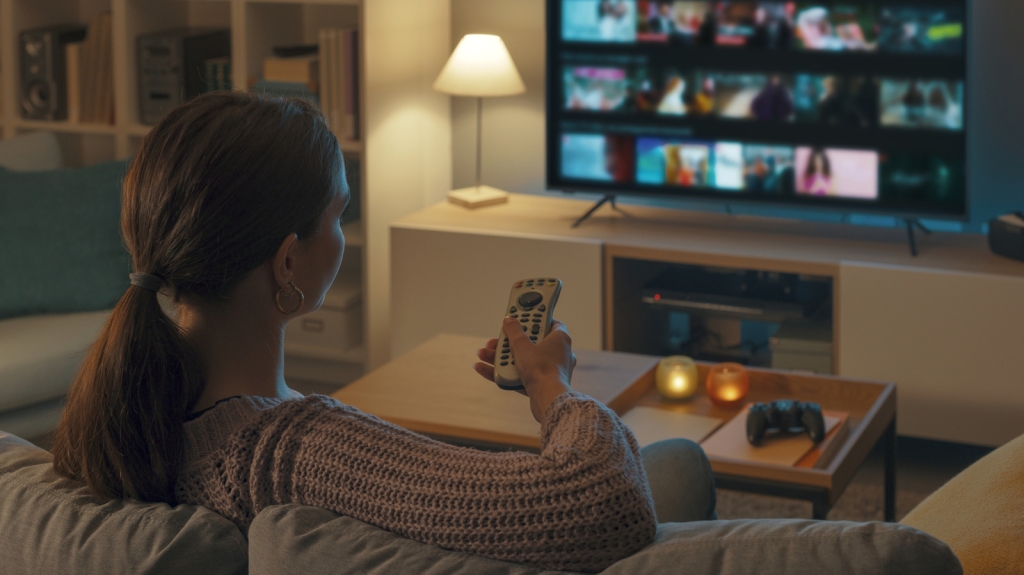
The Cheapest Way To Turn Your Old Computer Into A Powerful Media Center
TL;DR: Transform your aging PC into a cutting-edge media hub without breaking the bank—most of what you need is already in your house.
In an era where streaming devices dominate living rooms, many forget that the hardware to build a superior media center might be collecting dust in their closet. With 4K content becoming the norm and streaming services fragmenting libraries across multiple platforms, creating your own centralized media solution isn’t just nostalgic—it’s increasingly practical.
The beauty of this project lies in its accessibility. You don’t need cutting-edge hardware; even computers from 2016 with seventh-generation Intel processors can handle modern video codecs like HEVC (H.265) and VP9. That means countless laptops and desktops sitting unused could get a second life as the heart of your entertainment system.
What You’ll Need: The Bare Minimum
Network Capability: Before diving in, assess your network. 4K video can demand between 25-50 Mbps per stream, which any modern router can handle. If you’re planning to stream high-resolution content throughout your home, ensure your Wi-Fi can keep up or consider running an Ethernet cable to your media center location.
Storage Solutions: Your media library needs a home. While external drives can be added later, starting with at least a 1TB internal drive gives you room to grow. Consider the type of media you’ll store—4K movies can occupy 20-50GB each, while a season of HD television might use 10-20GB.
Memory Requirements: Don’t let RAM scare you off. While 8GB provides a comfortable buffer for media center applications like Jellyfin and Plex, Kodi can run on as little as 1GB, making it perfect for truly ancient hardware. If your system has less than 4GB, consider a minor upgrade—it’s often inexpensive and dramatically improves performance.
Connectivity: An HDMI port is non-negotiable for connecting to your TV or monitor. While built-in Wi-Fi works, a wired Ethernet connection eliminates buffering and provides more reliable streaming, especially for multiple users accessing content simultaneously.
The Software Decision: Free vs. Premium Options
Once your hardware checks out, the next critical choice is your media center application. Each option brings distinct advantages:
Kodi: The Lightweight Champion – This open-source powerhouse runs on virtually anything and costs nothing. Its interface is highly customizable, and the add-on ecosystem is vast. With just 2GB of RAM, Kodi delivers smooth performance and can function as both a local player and a media server. The learning curve is steeper than commercial alternatives, but the freedom and zero cost make it attractive for tinkerers.
Plex: Polished and Powerful – Plex offers a more refined experience with smartphone apps, smart TV integration, and automatic metadata fetching that organizes your library beautifully. The free tier handles local media well, but premium features like remote access, DVR functionality, and multiple user profiles require Plex Pass at $7 monthly. For many, this subscription pays for itself compared to cable bills.
Jellyfin: The Middle Ground – Completely free and open source, Jellyfin matches Plex’s core functionality without any subscription pressure. It lacks some polish and has a smaller community, but for those committed to the open-source ethos, it’s compelling. The trade-off is a slightly more complex initial setup.
Optimizing Your Setup: Small Investments, Big Returns
With software chosen, focus on the experience. Disable sleep modes in your operating system—nothing ruins movie night like a screen going black mid-film. Create a dedicated user account on your PC to launch directly into your media center app, bypassing the traditional desktop entirely.
The Remote Control Game-Changer: A wireless keyboard with an integrated trackpad transforms navigation. Models like the Logitech K400 Plus retail for around $30 and include a full QWERTY keyboard with media controls. For a more traditional feel, air mouse remotes with gyroscopic controls let you point at the screen, mimicking a Wii remote’s intuitive movement.
Live TV Integration: Adding over-the-air television capability costs surprisingly little. USB TV tuners like the Hauppauge WinTV-HVR-955Q ($80) work with most media center software. Pair it with a basic indoor antenna ($15-30), and you’ll access local channels in HD without any subscription. Plex requires its premium tier for DVR features, but Kodi and Jellyfin handle recording through various plug-ins at no cost.
Audio Considerations: If you’re an audiophile with a local music collection, ensure your media center supports high-resolution audio formats. Many can output lossless FLAC or DSD files to compatible receivers. For the best experience, connect via optical audio or HDMI to preserve surround sound formats like Dolby Atmos or DTS:X.
The Cost Breakdown: Pennies on the Dollar
Here’s what a complete setup might cost:
- Free Option: Use existing hardware + Kodi + basic remote = $0-30
- Mid-Range: Existing hardware + Plex Pass ($7/month) + quality remote = $60-100 upfront, $84 annually
- Premium Setup: New/refurbished mini PC ($150-300) + Plex Pass + advanced remote + TV tuner + antenna = $300-500 upfront, $84 annually
Compare this to streaming device subscriptions ($50-100/year) or cable packages ($600-1200/year), and the math becomes compelling. Your media center pays for itself within months while offering capabilities no commercial device matches.
Why This Matters Now
As streaming services raise prices and remove content based on licensing agreements, owning your media library provides stability entertainment budgets can’t guarantee. Your media center becomes more than a Netflix alternative—it’s a personal Netflix, housing movies you actually want to watch, TV shows unavailable on any streaming platform, and family videos that matter most.
The environmental angle shouldn’t be ignored either. Repurposing old computers reduces e-waste, and a single energy-efficient PC typically consumes less power than multiple streaming devices running continuously.
Whether you’re a budget-conscious consumer, a tech enthusiast craving customization, or someone who values media ownership in an increasingly subscription-dependent world, transforming that old computer into a media center represents one of the smartest tech upgrades available today—and it costs far less than you think.
Tags: #MediaCenter #DIYTech #HomeTheater #Streaming #TechHacks #BudgetTech #OldPC #Kodi #Plex #Jellyfin #4KStreaming #TechTips #SustainableTech #EntertainmentSetup #CordCutting #TechLifeHacks
Viral Phrases: “Your old PC is a hidden entertainment powerhouse,” “Why pay monthly when you can own forever,” “The media center that pays for itself,” “Tech recycling at its finest,” “Outdated hardware, upgraded experience,” “The streaming service you control,” “One PC to rule them all,” “Gaming rig? No. Media beast? Absolutely,” “The $30 upgrade that changes everything,” “Your personal Netflix, minus the fees”
,


Leave a Reply
Want to join the discussion?Feel free to contribute!