
The Galaxy S26’s most practical feature is already on everyone’s Android phone
Google Drive’s Built-In Scanner Is Better Than Galaxy S26’s AI — Here’s Why
In the race to pack smartphones with cutting-edge AI features, Samsung’s new Galaxy S26 has arrived with a flashy new document scanning capability. But as I dug deeper, I realized something surprising: you don’t need a 2026 flagship or fancy generative AI to scan documents like a pro. Google Drive has been quietly offering one of the best document scanners on any Android phone for years.
The Galaxy S26’s Scanner Hype — and Why It’s Overrated
The Galaxy S26’s new AI-powered document scanner is getting a lot of buzz. It promises to auto-detect, crop, and enhance your scans using advanced machine learning. But here’s the catch: every Android phone already has access to a scanner that’s just as good — and it’s built right into Google Drive.
That’s right. Whether you’re rocking a Galaxy S24 Ultra, a Nothing Phone 2, or a Pixel, Google Drive’s scanner delivers near-perfect results without the need for a high-end device or the latest AI gimmicks.
How to Use Google Drive’s Scanner (It’s Stupidly Simple)
- Open the Google Drive app on your Android phone.
- Tap the big + button in the bottom-right corner.
- Select Scan (or tap the camera icon above the + button).
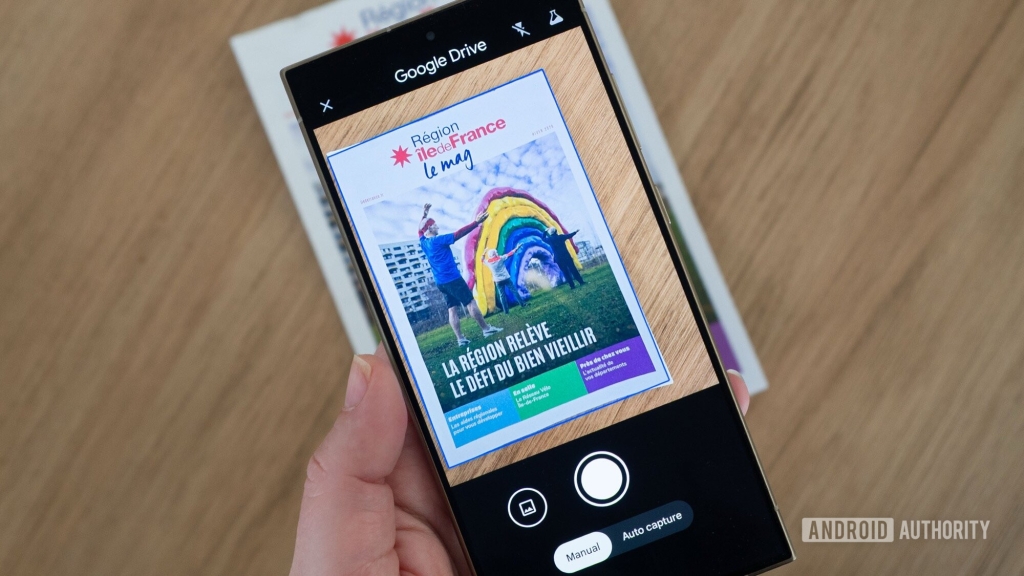
You’ll be greeted with two modes:
- Manual: Align the document and tap to capture.
- Auto capture: Let Drive detect and snap the document automatically.
Once you’ve captured your document, Drive works its magic:
- Auto-cropping: No more fiddling with angles or backgrounds.
- Shadow removal: Say goodbye to glare and uneven lighting.
- Auto-enhancement: Boosts contrast and fixes white balance for crystal-clear text.
Why Google Drive’s Scanner Beats the Competition
1. No Setup, No Fuss
Unlike third-party apps that bombard you with ads or require paid subscriptions, Google Drive’s scanner is free, fast, and ad-free. It’s the ultimate no-brainer solution.
2. Multi-Page Scanning Made Easy
Need to scan multiple pages? Just tap the + icon at the bottom-right to add more pages to your document. You can even rearrange or delete pages before saving.
3. Export Flexibility
Save your scans as:
- PDF: Perfect for official documents.
- JPEG: Ideal for quick snapshots.
4. Beta Features for Power Users
Google is testing a new batch scanning feature that lets you capture multiple pages in one go. Just move from page to page, and Drive stitches them together automatically. It’s not perfect yet, but it’s a promising addition.
Real-World Use: Why This Scanner Changed My Life
Before discovering Google Drive’s scanner, I dreaded scanning documents. It was a tedious process: align, focus, snap, crop, adjust contrast, save, and repeat. Sometimes I’d offload the task to my husband, who’d use an actual scanner — which took even longer.
Now? It’s a breeze. I can scan a multi-page document in seconds, and the results are so good I rarely need to tweak anything. It’s like having a professional scanner in my pocket.
And it’s not just me. My parents, who live halfway across the world, can now send me documents with zero hassle. No more lighting struggles or awkward angles — just snap, save, and share.
The Bottom Line: You Don’t Need Fancy AI
Here’s the truth: you don’t need a Galaxy S26 or generative AI to scan documents. Google Drive’s scanner is simple, fast, and accessible to everyone. It’s proof that sometimes, the best tech is the one that just works.
So, the next time you need to scan a document, skip the hype and open Google Drive. Your phone — and your sanity — will thank you.
Tags & Viral Phrases:
- Google Drive scanner
- Document scanning made easy
- No more AI hype
- Scan like a pro
- Free document scanner
- Multi-page scanning
- Shadow removal
- Auto-enhancement
- Parent-proof tech
- No ads, no fuss
- Scan in seconds
- Professional quality scans
- Accessible to everyone
- Skip the Galaxy S26
- Built-in scanner
- Time-saving tech
- Zero effort scanning
- Google Drive magic
- Document scanner hack
- Tech that just works
,

Leave a Reply
Want to join the discussion?Feel free to contribute!