
The Pixel 10 Pro finally solved my biggest privacy concern with this one feature
Keep Your Secrets Safe: How to Use Private Space on Android
In an era where our smartphones contain our entire digital lives, privacy has never been more critical. Whether it’s embarrassing apps you’d rather keep hidden, personal photos you want to protect, or sensitive documents that shouldn’t fall into the wrong hands, Android’s Private Space feature offers a secure solution. Here’s everything you need to know about this powerful privacy tool.
Why You Need Private Space
We’ve all been there—that moment of panic when someone asks to borrow your phone and you suddenly remember that app you’d rather keep to yourself. Or perhaps you’re traveling through airport security and realize officials might have the right to inspect your device. Maybe you’ve simply lost your phone and dread the thought of strangers accessing your most personal information.
Private Space addresses these concerns by creating a secure, password-protected environment on your Android device where you can store apps, files, and data away from prying eyes. The best part? Items in Private Space don’t even appear in your phone’s search results, making them virtually invisible to anyone using your device.
What Is Private Space?
Private Space is a built-in Android feature (available since Android 15) that creates a separate, isolated environment on your phone. Think of it as having a second user profile, but one that’s entirely hidden from view. You can install apps, store files, and even use different Google accounts—all within this secure space.
The feature has matured significantly since its initial launch, with Google ironing out early bugs to deliver a smooth, reliable experience. As long as your phone runs Android 15 or higher, you should have access to Private Space (though some manufacturers may not include it on their devices).
Setting Up Your Private Space
Getting started with Private Space is straightforward:
1. Open Settings on your Pixel phone and navigate to Security and privacy.
2. Select Private space from the Privacy section.
3. Tap SET UP to begin the configuration process.
4. Create or sign in to a different Google account. Using a separate account is crucial—if you use your main account, your app history will still be logged.
5. Set a lock code for your Private Space. You can use the same code as your main device or create a different one for added security.
Using Your Private Space
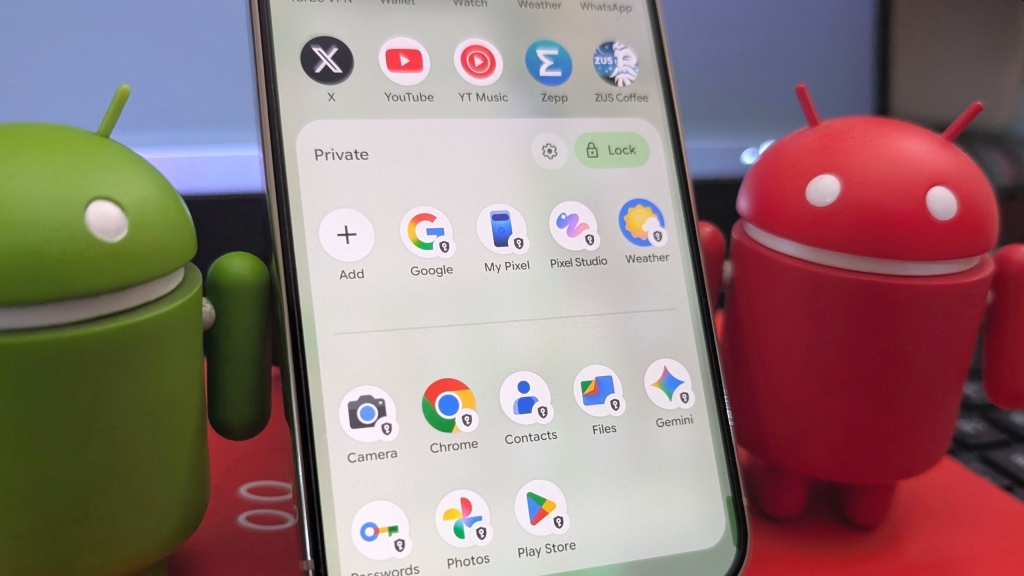
Once set up, your Private Space appears as a locked section at the bottom of your app drawer. After unlocking it, you can:
- Install apps from the Play Store
- Store sensitive files and documents
- Use different Google accounts for different purposes
- Keep browsing history and app usage separate
Google automatically adds several essential apps to your Private Space, including the Play Store, Chrome, Photos, Contacts, Camera, Files, Passwords, and even Gemini. You can add more apps through the Play Store, though you can’t add apps installed from other sources.
Hiding Private Space Completely
For maximum privacy, you can hide the Private Space entirely:
1. Access Private Space settings either through the gear icon in Private Space or via the main Settings menu.
2. Toggle on Hide private space.
3. Set automatic lock preferences (recommended: lock every time the device locks).
Once hidden, Private Space won’t appear in your app drawer. You’ll need to search for “Private Space” in your phone’s search bar to access it.
Key Features and Benefits
Complete Isolation: Private Space functions like a separate user profile, keeping your usage history, app data, and files completely isolated from your main account.
Automatic App Installation: Google pre-installs essential apps in your Private Space for immediate use.
File Management: Moving files to Private Space removes them from their original location, ensuring they’re truly hidden.
Search Protection: Items in Private Space don’t appear in device search results, making them virtually invisible.
Privacy Tips
- Always set your Private Space to lock automatically when your device locks
- Use a different Google account for maximum privacy
- Remember that files moved to Private Space are removed from their original locations
- Consider hiding Private Space entirely for added security
Final Thoughts
Private Space represents a significant advancement in mobile privacy, giving users unprecedented control over their digital lives. Whether you’re protecting sensitive work documents, keeping personal photos private, or simply want to separate different aspects of your digital life, this feature provides a robust solution.
In a world where our phones contain everything from banking information to personal photos, having a secure space to keep your most sensitive data is no longer a luxury—it’s a necessity. Private Space delivers this security in a user-friendly package that anyone can use.
tags: Android privacy, Private Space, hidden apps, secure storage, Google Pixel, Android 15, digital security, app privacy, secret folders, mobile protection
viral phrases: “Your secrets are safe here”, “Hide in plain sight”, “Digital fortress”, “Privacy reinvented”, “Unlock the invisible”, “Second profile, first-class privacy”, “What happens in Private Space stays in Private Space”, “The ultimate hiding spot”, “Privacy at your fingertips”, “Security meets simplicity”
,


Leave a Reply
Want to join the discussion?Feel free to contribute!