
The Pixel’s Beloved ‘Now Playing’ Widget Finally Has a Dedicated App
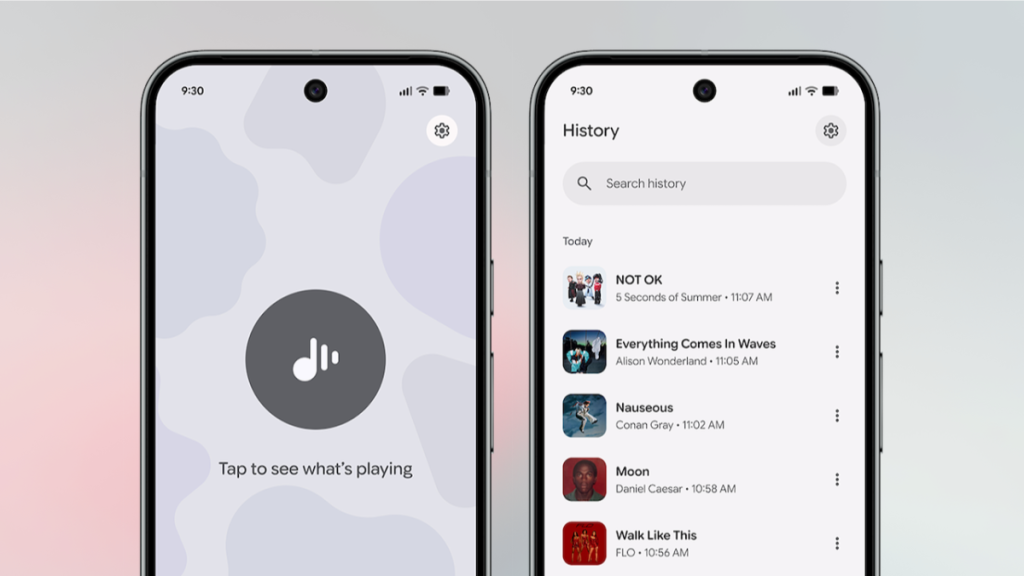
Pixel’s Now Playing App: The Magic of Music Recognition, Now in Your Hands
For years, Pixel users have marveled at the Now Playing widget—a seemingly magical feature that identifies songs playing around you and displays them right on your lock screen. It’s become a beloved staple of the Pixel experience, sparking countless conversations and moments of awe. But until now, the magic stopped there. What if you wanted to revisit a song you heard at your favorite café? Or manually trigger a music search? These limitations have finally been addressed with the launch of the dedicated Now Playing app, part of Google’s March 2026 Pixel Drop.
How to Find Your Now Playing Listening History on Google Pixel
The Now Playing app is a game-changer for music lovers. To get started, download it from the Google Play Store. After installation, you might need to update your software and wait a few hours before diving in. Once you’re set, enable the background feature that scans for music. If it’s disabled, the app will prompt you to turn it on.
Upon opening the app, you’ll be greeted by a history view—a treasure trove of all the songs your Pixel has recognized over time. For many users, this list could stretch over 100 songs long, offering a nostalgic trip down memory lane. But the app isn’t just about looking back; it’s about taking action. Tap the three-dot Menu button next to any song to listen to it on YouTube Music, add it to your Liked Songs, create a playlist, or save it to your Favorites section.
How to Manually Scan for Songs Using the Now Playing App
The Now Playing app isn’t just a history book; it’s also a powerful tool for discovering music in real-time. Switch to the Live tab, tap the big Music button, and let the app work its magic. In seconds, it will identify the song and display a full-screen preview. This feature is reminiscent of Shazam, making it a familiar and intuitive experience for users.
For even quicker access, the app supports Quick Settings controls. To add the Now Playing control to your Quick Settings, open the notification drawer, switch to the Quick Settings panel, and tap the Edit button. Find and add the Now Playing control, and you’ll be able to trigger music recognition with just a tap.
Settings and Customization
The Settings section of the app offers a few customization options. You can change your default music service under Connected music service, though currently, only YouTube and YouTube Music are available. Here’s hoping Google expands this to include Spotify, Apple Music, and other popular platforms in future updates. Other than that, the Settings screen is minimal, with the Clear History button being the only other notable feature.
Why the Now Playing App Matters
The Now Playing app transforms a once-static feature into a dynamic, user-friendly tool. It’s not just about identifying songs anymore; it’s about creating a seamless music discovery experience. Whether you’re revisiting old favorites, discovering new tracks, or manually searching for that elusive tune, the Now Playing app puts the power of music recognition in your hands.
Tags: #Pixel #NowPlaying #Google #MusicRecognition #Android #PixelDrop #YouTubeMusic #Shazam #TechNews #MusicDiscovery #QuickSettings #LockScreenWidget #ViralTech
Viral Phrases:
- “The magic of music recognition, now in your hands!”
- “Pixel’s Now Playing app: A game-changer for music lovers!”
- “Discover, save, and revisit songs like never before!”
- “From lock screen to full app: Now Playing gets a major upgrade!”
- “Shazam who? Pixel’s Now Playing app is here to stay!”
- “The future of music discovery is here, and it’s on your Pixel!”
- “Google’s March Pixel Drop brings the Now Playing app to life!”
- “Unlock the full potential of your Pixel with the Now Playing app!”
- “Music recognition just got a whole lot smarter!”
- “Your Pixel’s secret weapon for music discovery!”
,

Leave a Reply
Want to join the discussion?Feel free to contribute!