
The Wayland Terminal Most Linux Users Don’t Know About
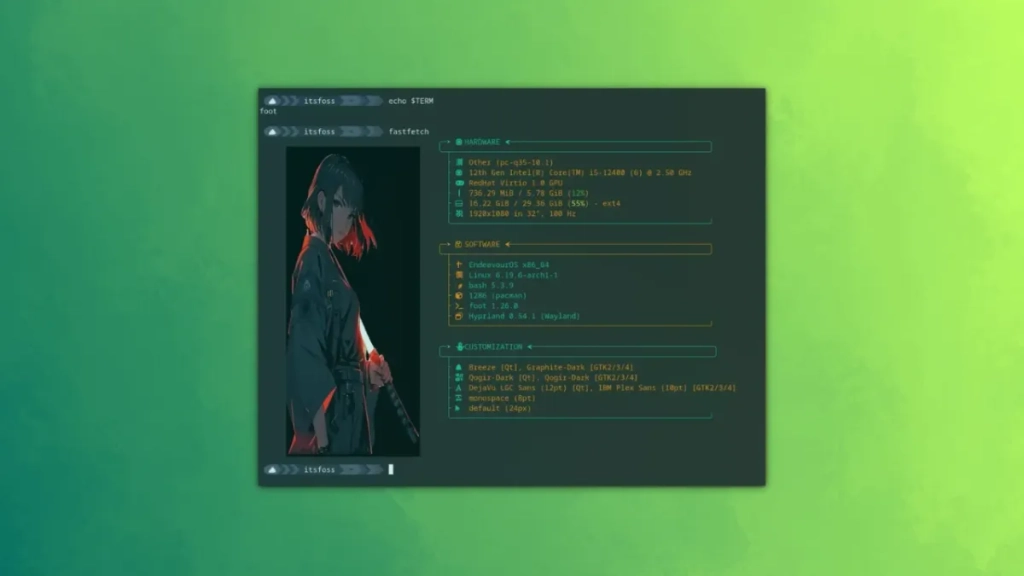
Foot Terminal: The Wayland-Native Powerhouse You’ve Been Missing
In the ever-expanding universe of Linux terminal emulators, Foot has been quietly revolutionizing the scene for years. While most users flock to mainstream options like Kitty or Alacritty, Foot has been steadily gaining a cult following among those who appreciate its Wayland-native architecture and lightning-fast performance.
What makes Foot special? Unlike traditional terminals that were originally designed for X11 and later adapted for Wayland, Foot was built from the ground up specifically for Wayland. This native approach means smoother performance, better integration with modern Linux desktop environments, and a more responsive user experience overall.
Let’s dive into the features that make Foot a terminal emulator worth your attention:
Sixel Image Support: Terminal Graphics Revolutionized
Remember when terminal output was limited to plain text and ASCII art? Foot shatters those limitations with built-in Sixel image support. This means you can actually display real images directly in your terminal without any external tools or workarounds.
For instance, when using system information tools like fastfetch, instead of seeing ASCII-rendered logos, you get crisp, actual images. Your terminal can now display your distro’s logo, system stats, and other visual elements in their full graphical glory. Even terminal file managers like Yazi can show image previews in their preview panes, making file navigation more intuitive than ever.
Scrollback Search: Find What You Need Instantly
We’ve all been there – you run a command that produces a massive output, and then you need to find that one specific line buried somewhere in the scrollback buffer. With Foot, this frustration becomes a thing of the past.
Foot’s scrollback search feature lets you search through thousands of lines of terminal output with ease. Simply press CTRL+SHIFT+R, type your search query, and watch as Foot highlights matching results in real-time. It’s like having a built-in grep for your terminal output, saving you countless minutes of manual scrolling and searching.
Keyboard-Driven URL Detection: Navigate the Web Without Leaving Your Terminal
Foot takes terminal productivity to another level with its intelligent URL detection system. When you encounter URLs in your terminal output – whether it’s from markdown previews using tools like Glow or from command-line utilities – Foot can highlight and make them clickable.
Press CTRL+SHIFT+O to activate URL mode, and Foot will attach small alphabetic characters next to each detected link. Simply press the corresponding character, and Foot will open the link in your default web browser. It’s a seamless workflow that keeps you in your terminal while still allowing you to access web resources when needed.
Server-Daemon Mode: Efficiency at Its Finest
For power users who frequently open multiple terminal windows, Foot’s server-daemon mode is a game-changer. This feature allows one process to host multiple windows, reducing memory usage and startup time significantly. The catch? If the main process crashes, all windows go down with it – but for most users, the benefits far outweigh this minor risk.
Setting up server mode is straightforward: add “foot –server” to your startup applications, and then use “footclient” instead of “foot” when opening new terminals. You can even bind your terminal shortcut to footclient for maximum efficiency.
Fallback Font Configuration: Perfect Glyph Support
Foot gives you granular control over font rendering with its sophisticated fallback font configuration. You can specify different fallback fonts for different situations, ensuring that even the most obscure Unicode characters display correctly. Whether you need specialized mathematical symbols, emoji, or language-specific glyphs, Foot has you covered.
Getting Started with Foot
Installation is typically straightforward since Foot is available in most major Linux distribution repositories:
- Ubuntu/Debian: sudo apt install foot
- Fedora: sudo dnf install foot
- Arch: sudo pacman -Syu foot
Foot expects its configuration file at ~/.config/foot/foot.ini. When you install Foot, a default configuration is placed at /etc/xdg/foot/foot.ini, which you can copy and customize to your liking.
Customization and Theming
One of Foot’s strengths is its extensive customization options. The configuration file allows you to tweak everything from colors and fonts to keyboard shortcuts and behavior. Want to change your shell? Easy. Need to adjust font rendering? No problem.
For those who love theming, Foot supports sophisticated color scheme configurations. You can split your configuration into multiple files for better organization, making it easy to switch between different themes or maintain complex setups.
Why Foot Deserves Your Attention
In a market saturated with terminal emulators, Foot stands out by focusing on what matters most: performance, Wayland-native design, and thoughtful features that enhance productivity. It’s not trying to be everything to everyone – instead, it excels at being a fast, lightweight, and highly capable terminal emulator.
Whether you’re a casual Linux user or a power user who spends hours in the terminal every day, Foot offers a compelling combination of features that can significantly improve your workflow. Its Wayland-native architecture ensures it’s future-proof as Linux continues to evolve, while its performance optimizations make it feel snappy and responsive even on older hardware.
Tags: #LinuxTerminal #WaylandNative #TerminalEmulator #FootTerminal #CommandLine #LinuxProductivity #OpenSource #TerminalCustomization #Wayland #LinuxTools
Viral Phrases:
“Terminal revolution is here”
“Wayland-native performance redefined”
“Terminal graphics that actually work”
“Search through thousands of lines instantly”
“Click links without leaving your terminal”
“Server mode for ultimate efficiency”
“Perfect glyph support every time”
“Future-proof terminal technology”
“Lightweight yet powerful”
“Productivity features you didn’t know you needed”
,


Leave a Reply
Want to join the discussion?Feel free to contribute!