
These features make the Mac and iPad better together
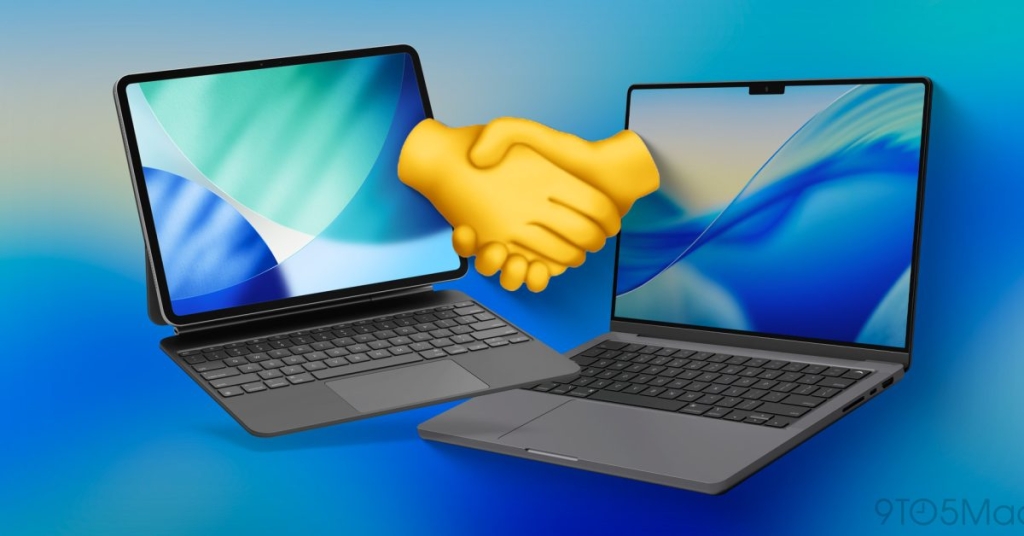
iPad and MacBook: The Ultimate Apple Ecosystem Duo You Didn’t Know You Needed
For nearly a decade, I’ve been a die-hard iPad user—using it as my main computer and navigating all the highs and lows. But here’s the truth most people miss: the iPad isn’t trying to replace your MacBook. It’s designed to work alongside it. Only when you experience them together do you unlock the true magic of Apple’s ecosystem. Features like Universal Control, Sidecar, Handoff, and continuity tools create those “aha” moments that genuinely transform how you work.
Let me walk you through some of the most mind-blowing ecosystem moments that iPadOS and macOS deliver when used together.
Sidecar: Your iPad Becomes a Portable Powerhouse Display
Sidecar is arguably one of the most popular features when pairing an iPad with a MacBook. This game-changing feature turns your iPad into a portable external display for your Mac. You can extend your desktop or mirror your screen—and here’s the kicker—you can even use the Apple Pencil in macOS environments for precision work.
How to enable Sidecar:
- Ensure both devices share the same Apple ID, Wi-Fi network, and Bluetooth is enabled
- On your Mac, go to System Settings > Displays > Add Display
- Choose Mirror or Extend to iPad
- Arrange your display position by tapping the Arrange button
Think about it: people spend $250-$1000 on portable external displays. Why not grab an iPad Air for $499 and get a portable display that also happens to be a full-featured iPad? I’ve been using my iPad Pro as a reference display in Final Cut Pro, and it’s been working masterfully.
Universal Control: One Keyboard, Two Devices, Zero Friction
What if you could use your iPad as an iPad but control both devices with the same keyboard and mouse without constantly switching Bluetooth connections? That’s exactly what Universal Control delivers. It lets you use a single keyboard and mouse or trackpad to control both your Mac and iPad seamlessly. You can even drag and drop files directly between them.
Setup is nearly identical to Sidecar:
- Same Apple ID, Wi-Fi, Bluetooth, and Handoff requirements
- On Mac: System Settings > Displays > Add Display > Link keyboard and mouse to iPad
- Arrange your iPad’s position as needed
I use this constantly when editing images in Affinity Photo on my iPad. I create the image, drag it to my Mac, and use it immediately—no AirDrop, no file transfers, no storage gymnastics. Just drag and drop magic.
Screenshot Edits: Apple Pencil Meets Mac Screenshots
This feature is massively underrated. When you take a screenshot on your Mac, you can annotate it directly—but using your trackpad or mouse for handwriting is never quite accurate. What if you could use your Apple Pencil instead?
Here’s where continuity shines: if your iPad is nearby, you can use it and your Apple Pencil to annotate Mac screenshots. The screenshot appears on your iPad, you make your edits, tap done, and the edited image appears as a file on your Mac desktop—it never actually sits on your iPad. Pure magic.
How it works:
- Take a screenshot on your Mac
- Tap the pencil icon in the screenshot preview
- Tap the down arrow and select your iPad
- Make edits on iPad
- Tap done—the edited image appears on your Mac
Universal Clipboard: Copy on One Device, Paste on Another
Universal Clipboard lets you copy text, images, or files on one Apple device and paste them onto another almost instantly. Once you experience this, you’ll wonder how you ever lived without it.
Requirements:
- Same Apple ID on both devices
- Wi-Fi, Bluetooth, and Handoff enabled
- Copy content on one device
- Paste on the other within seconds
Perfect for copying links, text, notes, small images, and even video. While this works with your iPhone too, it’s especially seamless between Mac and iPad. Just copy on one and paste on the other.
Handoff: Continue Your Work Seamlessly Across Devices
Handoff allows you to start working in an app on one device and continue exactly where you left off on another. Safari, Notes, Mail, and many Apple apps support this, making your workflow feel continuous rather than fragmented.
How to use Handoff:
- Enable Handoff on both devices
- Open a supported app on one device
- Look for the app icon in the Dock or app switcher on the other device
- Tap to continue where you left off
For example, if you’re using Notes on your Mac with your iPad nearby, you’ll see the Notes app icon appear in your iPad’s dock with a little computer badge. Tap it, and you’ll open to the exact note and position you were in on your Mac. This eliminates the friction and time it takes to find what you were working on.
Final Thoughts: The Ecosystem Advantage
There are countless other ecosystem moments worth exploring (check out our video for more). The combination of Mac and iPad is something no other company offers. Once you start using tools like Universal Control, Sidecar, and Handoff regularly, the devices stop feeling separate and start feeling like one adaptive system.
The best part? You don’t need the latest iPad Pro or MacBook Pro to experience this. Even entry-level models unlock most of the same functionality. You could get a Mac mini or MacBook Air and pair it with an entry-level iPad and still get all the features mentioned above.
What do you think? What are your favorite Apple ecosystem moments? Do you use any of these features?
Best Apple Deals
[FTC: We use income earning auto affiliate links. More.]
Tags & Viral Phrases:
iPad and MacBook ecosystem, Apple ecosystem magic, Sidecar feature tutorial, Universal Control setup guide, Apple Pencil Mac integration, iPad as external display, Apple continuity features, Handoff between Mac and iPad, Universal Clipboard Apple, iPad MacBook workflow, Apple ecosystem moments, Mac and iPad synergy, Apple device integration, Sidecar vs portable monitor, Universal Control drag and drop, Apple ecosystem advantages, iPad MacBook productivity, Apple continuity tools, Mac iPad seamless workflow, Apple ecosystem features 2026, iPad as MacBook companion, Apple ecosystem benefits, Mac iPad ecosystem magic, Apple device ecosystem tutorial, iPad MacBook integration guide
,

Leave a Reply
Want to join the discussion?Feel free to contribute!