
This $5 cleaning gel did wonders for my keyboard – and 4 other PC cleaning tips
The Ultimate PC Maintenance Guide: Keep Your Computer Running Like New
In today’s digital-first world, our computers are the beating heart of our daily lives—handling everything from work presentations to late-night gaming sessions. Yet despite their importance, most of us treat our PCs like indestructible machines, never giving them the TLC they desperately need. I’m here to tell you that regular computer maintenance isn’t just a good idea—it’s absolutely essential for keeping your system running smoothly for years to come.
After spending nearly a decade writing about technology and consumer electronics, I’ve learned that the difference between a computer that lasts five years versus one that dies after two often comes down to simple maintenance habits. Whether you’re rocking a high-end gaming rig or a budget-friendly office PC, these maintenance tips will help you maximize performance and extend your computer’s lifespan.
Why PC Maintenance Matters More Than You Think
Let me be brutally honest: most people completely neglect their computers until something goes catastrophically wrong. I used to be one of them. For years, I let dust bunnies colonize my desktop tower like some kind of silicon-based ecosystem. The result? Overheating, sluggish performance, and eventually, hardware failure that cost me hundreds in repairs.
Here’s the cold, hard truth: heat is the silent killer of computer components. When dust accumulates inside your case, it acts like insulation, trapping heat and forcing your fans to work overtime. This creates a vicious cycle where your components run hotter, wear out faster, and eventually fail. Regular maintenance breaks this cycle and can add years to your PC’s life.
Safety First: Preparing for Your PC Deep Clean
Before you even think about opening your computer case, let’s talk safety. Your PC contains sensitive electronic components that can be damaged by static electricity—something as simple as walking across carpet can generate enough static to fry a motherboard.
Essential safety steps:
- Unplug your computer completely from the wall outlet
- Move to a non-carpeted surface like hardwood, tile, or concrete
- If you can’t avoid carpet, invest in an anti-static wrist strap (around $10) or anti-static mat
- Flip the power supply switch on the back of your PC to the “off” position
- Give your PC time to cool down if it’s been running recently
The Tools You’ll Need (Most Are Dirt Cheap)
The beauty of PC maintenance is that you don’t need expensive specialized equipment. Here’s what I use for every cleaning session:
Compressed air cans – Your best friend for blowing out dust. Available at any office supply store or big-box retailer for under $10. Pro tip: Use short bursts rather than continuous spray to avoid freezing your components.
Electronics-safe alcohol wipes – Perfect for cleaning external surfaces without leaving residue. Alternatively, use a microfiber cloth with 91% isopropyl alcohol (avoid lower concentrations that leave streaks).
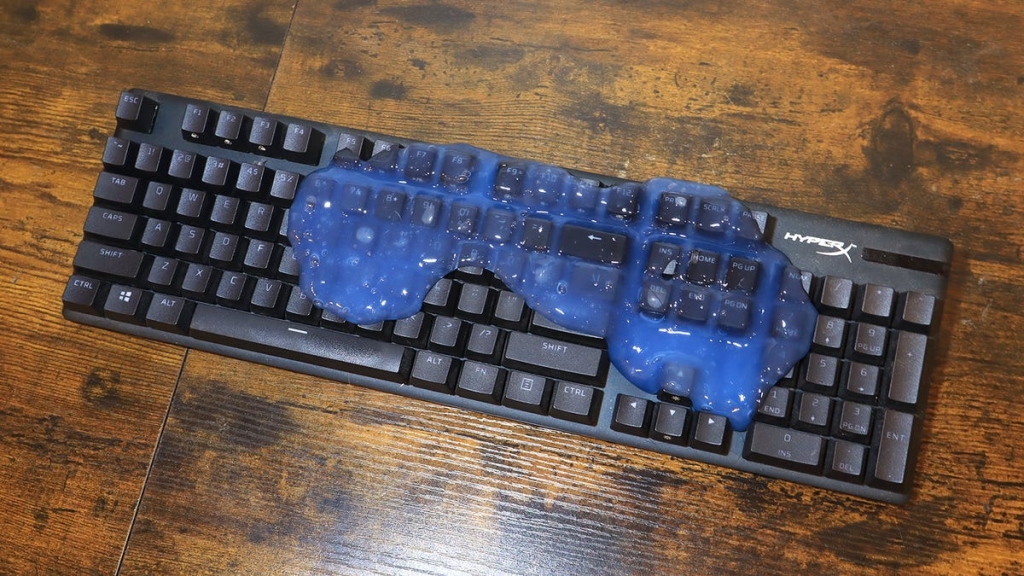
Cleaning gel – This reusable goo is amazing for cleaning keyboards and other hard-to-reach areas. It picks up crumbs and dust without damaging key switches.
Zip ties – For cable management. A tidy interior improves airflow and makes future maintenance easier.
Deep Cleaning Your Hardware: Step-by-Step
1. Opening Your Case
The method varies by case model, so consult your manual first. My Maingear M1 uses just two thumbscrews to remove the glass panel—incredibly user-friendly. Some cases might require removing multiple screws or sliding panels.
2. Dust Busting Inside the Case
Once exposed, grab your compressed air and methodically work through every component:
- Start with fans (CPU, GPU, case fans)
- Move to heatsinks and radiators
- Don’t forget the power supply unit (PSU)
- Clean around the motherboard, being careful around capacitors
- Pay special attention to dust filters (if your case has them)
Critical warning: Never use a vacuum cleaner inside your PC. The static electricity generated can damage components, and the hose can accidentally bump into and break delicate parts.
3. Cleaning External Surfaces
Use alcohol wipes or a microfiber cloth with 91% isopropyl alcohol to clean:
- The exterior of your case
- Monitor bezels (but never the screen itself—alcohol can damage display coatings)
- Keyboard and mouse surfaces
For keyboard cleaning, the cleaning gel is revolutionary. Those tiny crevices between keys trap everything from crumbs to pet hair, and compressed air often just pushes debris deeper. The gel conforms to the shape and lifts out debris without damaging switches.
4. Cable Management
Take this opportunity to organize your cables. Use zip ties to bundle cables neatly, keeping them away from fans and airflow paths. Good cable management isn’t just about aesthetics—it improves cooling and makes future upgrades or maintenance much easier.
Software Maintenance: The Digital Spring Cleaning
Hardware cleaning is only half the battle. Your software needs regular attention too. Here’s my comprehensive software maintenance routine:
1. Windows Updates
Install updates as soon as they’re available. These patches fix security vulnerabilities and often include performance improvements. Ignoring updates is like leaving your front door unlocked in a bad neighborhood.
2. Regular Restarts
Restart your computer at least once a week. This clears your system’s memory cache and can resolve minor software glitches that accumulate over time.
3. Antivirus Protection
Run a full system scan with reputable antivirus software. Malware can silently consume resources and compromise your data. Consider Windows Defender (built-in) or third-party options like Bitdefender or Malwarebytes.
4. Uninstall Unused Programs
Go through your installed programs and remove anything you haven’t used in the past six months. Each unused program consumes disk space and may run background processes that slow your system.
5. Manage Startup Programs
This is where you’ll see the biggest performance boost. Too many programs launching at startup can significantly slow boot times and increase resource usage.
How to manage startup programs:
- Press Ctrl+Shift+Esc to open Task Manager
- Click the “Startup apps” tab (it has a throttle icon)
- Right-click on any program you don’t need immediately at startup and select “Disable”
- Be strategic—disable non-essential programs but keep security software enabled
6. Clear Temporary Files
Your system accumulates temporary files constantly. Here are two methods:
Automatic method: Enable Storage Sense in Windows Settings > System > Storage. This automatically cleans up temporary files when disk space runs low.
Manual method: Use Disk Cleanup:
- Search for “Disk Cleanup” in the Windows search bar
- Select your primary drive (usually C:)
- Choose what to delete (temporary files, recycle bin, system cache, etc.)
- Click “Clean up system files” for even more options
You might be shocked at how much space you reclaim. I recently cleared 80GB of accumulated junk from my system!
The Results: Before and After
After my most recent cleaning session (which had been overdue by about six months), the difference was remarkable. My PC’s temperatures dropped by 10-15°C under load, fan noise decreased significantly, and overall system responsiveness improved noticeably.
The cleaning gel transformed my keyboard from a crumb-filled nightmare to pristine condition. My cable management went from “rat’s nest” to “professional setup.” And the software cleanup freed up enough disk space to install several new games without upgrading my storage.
Making Maintenance a Habit
The key to effective PC maintenance is consistency. I recommend:
- Quick software cleanup: Monthly
- Full software maintenance (updates, scans, temp file cleanup): Quarterly
- Hardware cleaning: Every 3-6 months, depending on your environment
If you have pets, smoke in your home, or live in a dusty area, you might need to clean more frequently.
The Bottom Line
Your computer is an investment, and like any investment, it requires regular maintenance to protect its value. The time and minimal cost involved in proper PC maintenance pale in comparison to the expense of premature hardware replacement or data loss from system failure.
Remember: the best computer isn’t necessarily the newest or most expensive one. It’s the one that’s been properly maintained and cared for. By following these simple steps, you’ll ensure your PC runs at peak performance for years to come, saving you money and frustration in the long run.
Tags: PC maintenance, computer cleaning, hardware care, software optimization, Windows 11 tips, gaming PC setup, desktop maintenance, tech tips, computer longevity, system performance
Viral phrases: “dust bunnies colonizing your desktop,” “heat is the silent killer of computer components,” “cleaning gel is revolutionary,” “cable management gone from rat’s nest to professional setup,” “80GB of accumulated junk,” “your computer is an investment,” “consistency is key to effective PC maintenance”
,
Leave a Reply
Want to join the discussion?Feel free to contribute!