
This forgotten Pixel 10 feature just made my life a little bit easier — Here’s how to use it
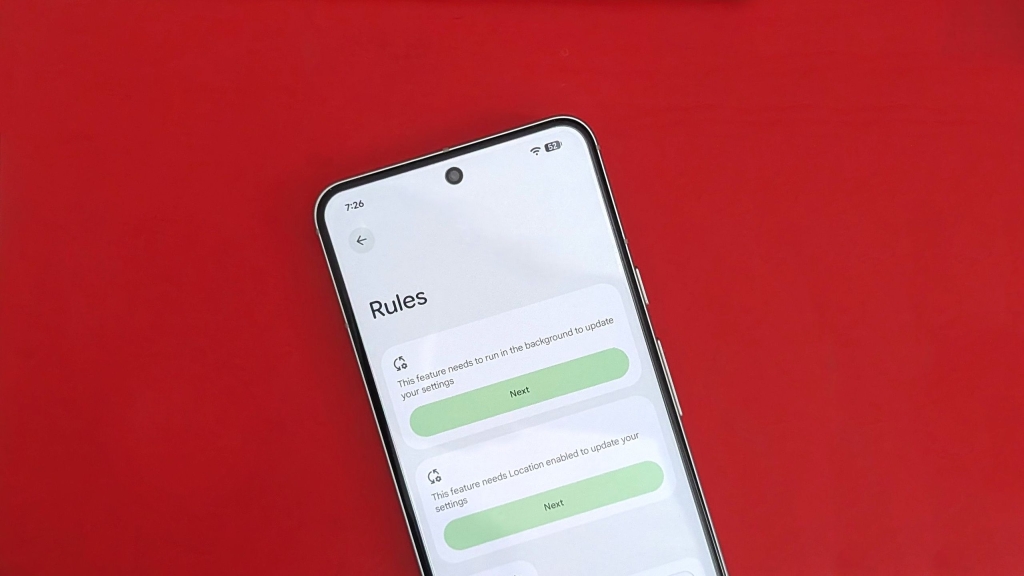
Google Pixel 10’s Hidden Automation Feature: A Game-Changer You’ve Probably Forgotten About
In the fast-paced world of Android smartphones, features come and go with each new iteration. But some gems get buried under the avalanche of new capabilities, waiting patiently for users to rediscover them. The Rules feature on Google Pixel devices is precisely one of those hidden treasures that’s been quietly improving lives since 2019.
The Rules Feature: Android’s Best-Kept Secret
Remember when Rules was a big thing on Android? Yeah, me neither. This long-forgotten feature from 2019 still exists, as I recently discovered, and it is actually quite useful. The Rules feature is still available on Android 16, and it’s really straightforward. You can use it to create automations by setting conditions that trigger an event based on your Wi-Fi or location. While the automations aren’t as open-ended as dedicated automation apps, they’re still a nifty way to change settings you alter regularly.
The Google Pixel 10 not only retains this feature but also uses the Tensor’s smarts to learn from your habits and suggest automations based on your behavior. I’ve found Rules quite helpful since rediscovering the feature, and here’s how you can use it, too.
How to Configure Rules on Your Pixel to Create Automations
Rules work much like routines on Google Home. Except, of course, you’re not creating automations for smart devices. Rather, Rules create automations that change certain phone settings on your Google Pixel device based on your location or the Wi-Fi network you’re connected to.
Let me walk you through the steps of setting a Rule. I used a Pixel 10 Pro for this guide, but any Google Pixel device running Android 10 or above should have this feature.
1. Open Settings on your Google Pixel.
2. Enter System settings.
3. Tap Rules under System settings.
4. Tap Next and give the necessary permissions to access Wi-Fi and location data.
5. Tap the Add rule button.
6. Choose your rule type: Wi-Fi or Location.
7. Set the location or Wi-Fi network.
8. Next, set the action that you want your Pixel to do.
9. Tap the final Add button at the bottom-right corner.
This one is a bonus step that can help you out a ton. In the Rules settings menu where you just created an automation, enable the toggle to Automatically suggest rules based on changes that you regularly make to your settings.
The Beauty of a Pixel is That it Does Everything Better
If you felt unsure about how you could benefit from the “Automatically suggest rules” option, it’s a fantastic way to let your phone do the thinking. Even if you can’t think of the settings you change frequently and in what conditions, your Pixel will notice your patterns and suggest useful automations based on that.
I’m really hoping to see Google integrate this with Gemini and Google Home going forward, enabling us to do even more with the Rules feature. It seems like the natural path for Google to take, especially with Gemini being front and center in Android and the rise of agentic AI.
Why Rules Matters in 2024
In an era where smartphones are becoming increasingly intelligent, the ability to automate routine tasks isn’t just convenient—it’s transformative. The Rules feature represents Google’s commitment to making technology work for you, not the other way around.
For busy professionals, parents juggling multiple responsibilities, or anyone who values their time, these automations can remove countless micro-frustrations from daily life. Imagine never having to remember to silence your phone during meetings, or having your device automatically switch to battery-saving mode when you’re at your favorite coffee shop for hours.
The beauty lies in its simplicity. While power users might crave more complex automation capabilities, the Rules feature hits that sweet spot between functionality and accessibility. It’s sophisticated enough to handle common scenarios without overwhelming users with options.
The Future of Automation on Android
As Google continues to refine its AI capabilities with Gemini and Tensor processors, we can expect the Rules feature to become even more intelligent. The potential for deeper integration with third-party apps, more nuanced conditions, and predictive automation based on learned behaviors is enormous.
The Pixel 10’s implementation shows that Google is committed to this feature, using the device’s AI capabilities to enhance the user experience. This isn’t just about saving a few taps here and there—it’s about creating a more intuitive, responsive relationship between user and device.
Tags & Viral Phrases
Google Pixel 10, Android 16, automation features, hidden smartphone features, Pixel tips and tricks, smartphone productivity hacks, AI-powered automation, Google Tensor, location-based automation, Wi-Fi automation, smartphone settings automation, Pixel Drops, Android customization, smart device integration, agentic AI, Gemini integration, smartphone battery optimization, productivity features, tech hidden gems, Android Central recommendations, smartphone workflow optimization, contextual automation, device intelligence, user experience enhancement, mobile automation, smart settings, predictive technology, smartphone intelligence, digital wellness features, tech productivity, automation revolution, smartphone capabilities, Google ecosystem, Pixel ecosystem advantages, mobile computing evolution, intelligent devices, smartphone personalization, automation for beginners, advanced Android features, Pixel advantages, Android innovation, smartphone efficiency, technology that learns, device adaptation, smart living features, mobile productivity tools, Android automation potential, future of smartphone interaction, intelligent device management, seamless technology experience, productivity enhancement features, smartphone behavior learning, contextual awareness technology, automated lifestyle management.
,


Leave a Reply
Want to join the discussion?Feel free to contribute!