
You Can Now Install—and Update—Microsoft Store Apps Using the Command Line
Windows Just Got a Secret Weapon: Command-Line Access to the Microsoft Store
For years, Windows users have endured the sluggish, ad-cluttered experience of the Microsoft Store. The app marketplace has been a necessary evil—a gateway to installing software on Windows, but one that often felt more like a chore than a convenience. Opening it meant waiting for sluggish load times, wading through irrelevant promotions, and navigating a confusing interface that seemed designed to frustrate rather than facilitate.
But Microsoft just changed the game entirely.
In a move that has sent ripples through the tech community, Microsoft recently unveiled a brand-new command-line interface (CLI) for the Microsoft Store. This isn’t just an incremental update—it’s a fundamental reimagining of how Windows users interact with software installation. The best part? It’s available right now, and it transforms what was once a tedious process into something that feels genuinely modern and efficient.
The Revolution Is Here: Accessing the Microsoft Store from PowerShell
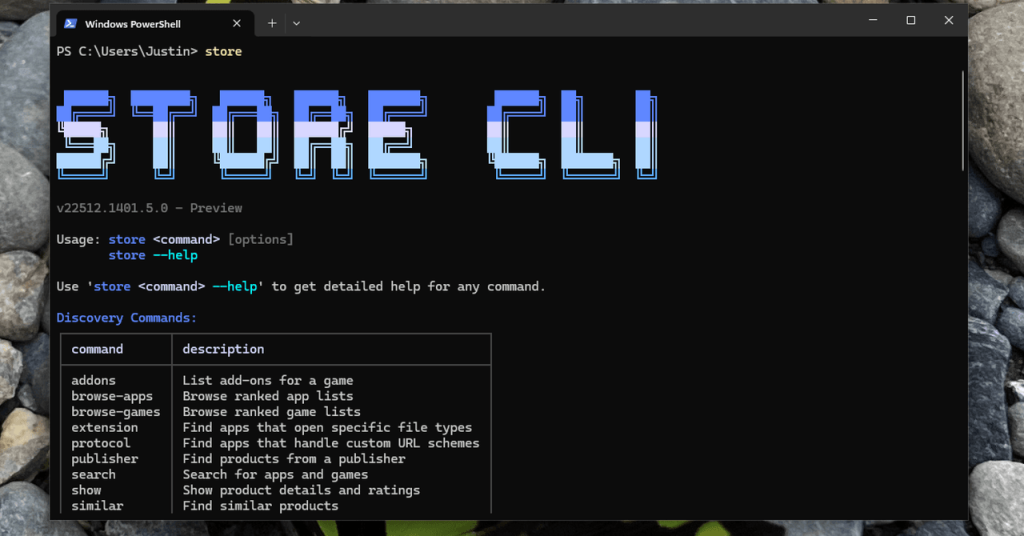
Getting started couldn’t be simpler. Open PowerShell on any Windows 11 machine that’s running the latest updates, type “store,” and watch as a sleek ASCII art logo appears alongside a comprehensive list of available commands. If nothing happens, don’t panic—just ensure your Windows installation has received all recent updates, as this feature requires the latest builds.
What appears next is nothing short of magical for power users. The interface presents a suite of sub-commands that let you search for, install, update, and manage software—all without ever touching a graphical interface. It’s the kind of functionality that Linux users have enjoyed for decades and that macOS users have accessed through third-party tools like MAS for the Mac App Store. Now, Windows has joined the party with a first-party solution that feels both polished and powerful.
A Command-Line Experience That Actually Works
Microsoft’s implementation deserves genuine praise for its thoughtful design. Unlike other command-line package managers that require you to know exact package names or syntax, this tool is remarkably forgiving and intuitive.
During testing, I decided to install Firefox without bothering to look up how the browser is listed in the store. I simply typed “store install firefox” and hit enter. The tool sprang into action, searched the store’s database, identified Mozilla Firefox as the most likely match, displayed the publisher information (Mozilla Corporation), and asked for confirmation before proceeding. This conversational approach eliminates the frustration of cryptic error messages and makes software installation accessible to users of all skill levels.
The implications are profound. Installing software on Windows has traditionally meant either navigating the Microsoft Store’s graphical interface, downloading installers from websites, or using third-party package managers. Each approach has drawbacks—the store is slow, websites can be untrustworthy, and third-party tools require additional setup. This new CLI offers a fourth option that combines the security of the official store with the speed and efficiency of command-line operations.
What You Can (and Can’t) Do
The tool’s capabilities are extensive. Beyond simple installation, you can:
- Search the store using natural language queries with “store search [query]”
- View detailed information about applications with “store show [app name]”
- Browse curated categories and bestseller lists with “store browse-apps”
- Update installed applications
- Manage your library of purchased and installed software
However, there are limitations worth noting. The CLI can only install applications that are available through the Microsoft Store itself. This means some extremely popular software remains inaccessible through this method. Google Chrome, arguably the world’s most widely used web browser, isn’t available in the store. Neither is Paint.NET, a favorite among Windows users for image editing. These omissions highlight the ongoing tension between Microsoft’s curated store ecosystem and the broader Windows software landscape.
Despite these gaps, the store contains a surprising wealth of applications. From productivity tools and creative software to games and utilities, there’s a good chance you’ll find what you need. The key is knowing what’s available, which is where the search and browse commands become invaluable.
Why This Matters: The Future of Windows Software Management
This development represents more than just a convenient new way to install apps—it signals Microsoft’s recognition that power users demand better tools. The command-line interface caters to developers, IT professionals, and technically-minded users who value efficiency and automation.
Consider the workflow improvements. Instead of opening the store, waiting for it to load, searching for an application, clicking through multiple screens, and then waiting for the download to begin, you can now install software with a single command. For organizations deploying software across multiple machines, this CLI could become an invaluable tool for automation and scripting.
The move also aligns Windows more closely with modern development practices. As Windows continues to court developers—particularly those who work across multiple platforms—providing robust command-line tools becomes increasingly important. This feature makes Windows feel more like a professional-grade operating system, capable of meeting the demands of serious technical work.
The Viral Impact: Why Everyone’s Talking About This
The tech community has responded with enthusiasm bordering on excitement. On social media platforms and developer forums, users are sharing their favorite command-line workflows and celebrating what many see as a long-overdue improvement to the Windows experience.
The buzz isn’t just about the functionality—it’s about what this represents. Microsoft, once seen as a company resistant to open standards and command-line culture, is now embracing these tools wholeheartedly. This shift reflects the company’s broader transformation under CEO Satya Nadella, who has prioritized cloud services, developer tools, and cross-platform compatibility.
For many users, this feature has become the tipping point that makes Windows 11 feel worth upgrading to. After years of criticism about the operating system’s changes and limitations, Microsoft has delivered something that genuinely excites its core user base.
Tags and Viral Phrases
command-line interface, Microsoft Store revolution, Windows 11 power user, PowerShell magic, software installation reimagined, goodbye Microsoft Store GUI, Linux-style package management comes to Windows, Microsoft embraces developers, terminal-based app installation, Windows finally gets command-line tools, store install made easy, Microsoft’s developer love letter, Windows 11 CLI feature, power user productivity hack, Microsoft Store from the terminal, command-line software management, Windows development tools, PowerShell store commands, Microsoft Store CLI, terminal app installation, Windows package management, Microsoft developer tools, command-line Windows apps, store search made simple, Windows 11 update excitement, Microsoft Store browsing from terminal, CLI software installation, Windows power user features, Microsoft Store command-line access, PowerShell software management, Windows 11 terminal features, Microsoft developer experience, command-line Windows software, store show application details, Windows terminal productivity, Microsoft Store automation, PowerShell Windows 11, Windows command-line revolution, Microsoft Store power tools, terminal-based Windows software, Windows 11 CLI capabilities, Microsoft Store browsing commands, command-line Windows installation, Windows developer tools evolution, PowerShell store functionality, Microsoft Store terminal access, Windows 11 power features, command-line Windows apps installation, Microsoft Store CLI commands, Windows terminal software management, PowerShell Windows software installation, Microsoft Store browsing made easy, Windows 11 command-line innovation, terminal Windows app management, Microsoft Store power user tools, Windows 11 developer features, command-line Windows 11, PowerShell Microsoft Store, Windows software installation revolution, Microsoft Store terminal browsing, Windows 11 CLI excitement, command-line Windows Store access, Microsoft Store power features, PowerShell Windows software, Windows 11 terminal capabilities, Microsoft Store command-line browsing, Windows developer experience improvement, PowerShell Windows 11 software, Microsoft Store terminal commands, Windows 11 power user tools, command-line Windows Store browsing, Microsoft Store CLI browsing, Windows terminal software installation, PowerShell store browsing, Windows 11 CLI software management, Microsoft Store terminal browsing made easy, Windows 11 command-line software, PowerShell Windows Store commands, Microsoft Store power user browsing, Windows terminal app installation, command-line Windows Store search, Microsoft Store CLI search, Windows 11 terminal software management, PowerShell store browsing commands, Microsoft Store browsing from PowerShell, Windows 11 CLI browsing capabilities, command-line Windows Store browsing made simple, Microsoft Store terminal browsing experience, Windows 11 terminal software installation made easy, PowerShell store browsing functionality, Microsoft Store CLI browsing commands, Windows terminal software browsing, command-line Windows Store browsing tools, Microsoft Store terminal browsing features, Windows 11 CLI browsing experience, PowerShell store browsing capabilities, Microsoft Store browsing from command line, Windows terminal software browsing made simple, command-line Windows Store browsing functionality, Microsoft Store CLI browsing experience, Windows 11 terminal browsing capabilities
,


Leave a Reply
Want to join the discussion?Feel free to contribute!